
Kodi IPTV Setup 2026: M3U Playlist & EPG Guide
Last updated: · 3 min read · Playlist IPTV (TEST)
Works on
TL;DR: In Kodi, go to Add-ons → My add-ons → PVR Clients, install PVR IPTV Simple Client, open its Configure screen, paste your M3U playlist URL under General and your EPG URL under EPG settings, press OK, Enable it, and restart Kodi — a TV section appears in the main menu with your channels and guide. Kodi is 100% free and open source.
Important: Kodi plays your subscription — it sells no channels. Download it only from kodi.tv. No subscription yet? Get instant activation here.
Step 1: Install Kodi on your device#
On Windows / Mac / Linux
Download the installer from kodi.tv/download, run it, and open Kodi.
On Amazon Firestick / Fire TV
- Install the free Downloader app (Find → Search → "Downloader").
- Enable Install unknown apps for Downloader (Settings → My Fire TV → Developer options).
- In Downloader, enter the official Kodi download address for Android (ARMV7A 32-bit works on most Firesticks) and install.
On Android / Android TV
Install Kodi from the Google Play Store.
Step 2: Install PVR IPTV Simple Client#
- Open Kodi → Add-ons (puzzle-piece icon).
- Open My add-ons → PVR Clients.
- Select PVR IPTV Simple Client → Install (it may already be installed — then just select it).
This is an official built-in Kodi add-on — free forever, no third-party repositories needed.
Step 3: Add your M3U playlist and EPG#
- With PVR IPTV Simple Client selected, open Configure.
- Under the General tab, set the location to Remote Path and paste your M3U playlist URL from your welcome email into the M3U playlist URL field.
- Switch to the EPG settings tab, set the location to Remote Path, and paste your EPG URL (XMLTV format) into the XMLTV URL field.
- Press OK.
- Back on the add-on screen, press Enable.
- Kodi asks to restart — accept. After the restart, a TV section appears in Kodi's main menu with your live channels, and the Guide shows the TV schedule.
First sync can take a few minutes — especially the EPG on the first load. Give it time before assuming something is wrong.
Tips if something doesn't work#
- The TV section doesn't appear: make sure the PVR client is Enabled (not just installed), then restart Kodi.
- "Unable to connect": re-type the M3U URL by hand — pasted links often carry hidden characters — and confirm
http://vshttps://matches your welcome email exactly. - Empty channel list: in the add-on settings, switch the playlist location between Remote Path and Local Path — a mismatch here is the classic cause.
- EPG is empty: double-check the XMLTV URL in the EPG settings tab, then restart Kodi so the PVR manager re-imports.
- Buffering: use Ethernet or 5 GHz Wi-Fi; in Kodi go to Settings → Player and enable hardware acceleration (allow hardware acceleration for your device's decoder).
Full troubleshooting: IPTV error codes & fixes.
Frequently Asked Questions
Is Kodi free?
Yes — completely free and open source, on Windows, Mac, Linux, Android, Firestick and more. Your IPTV subscription is separate.
Does Kodi support Xtream Codes?
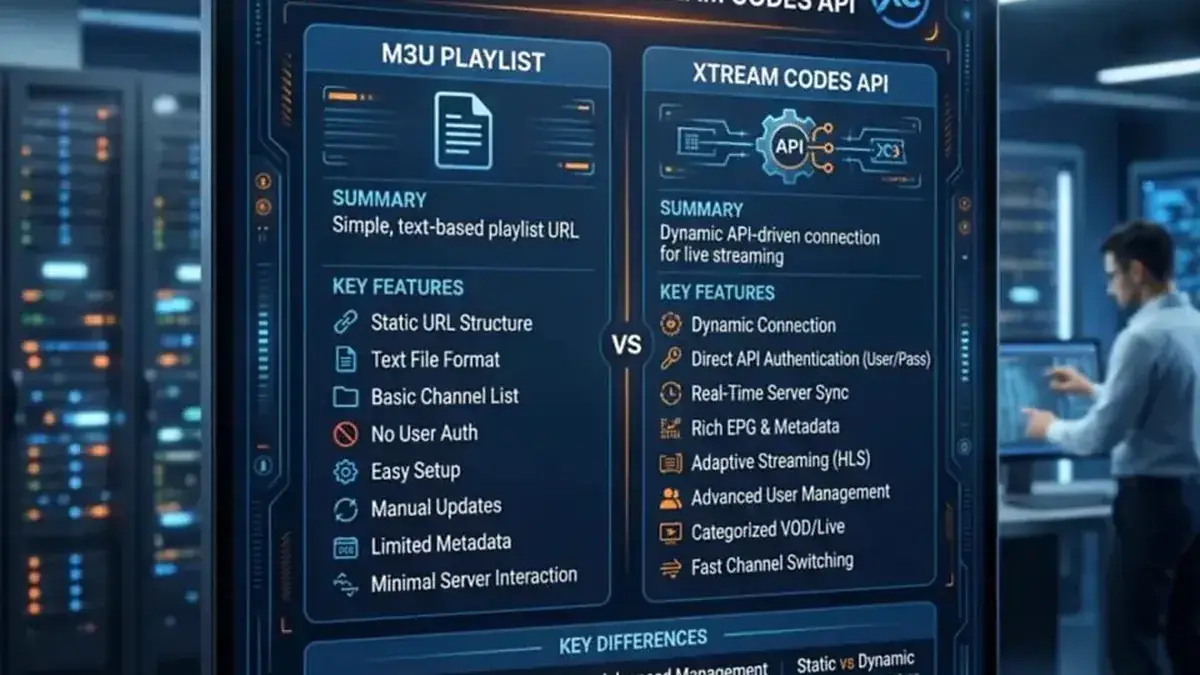
The PVR IPTV Simple Client uses M3U only — no Xtream Codes login. That's fine: your subscription includes an M3U URL for exactly this.
Where do I get the EPG URL?
From your IPTV subscription welcome email — the same email that has your M3U playlist URL. Paste it as the XMLTV URL in the EPG settings tab.
Can I use Kodi on Firestick for IPTV?
Yes — install Kodi via the Downloader app (Step 1 above), then follow the same PVR Simple Client steps. It works well on Fire TV Stick 4K and newer.
Do I need a VPN for Kodi IPTV?
Only if your ISP blocks or throttles IPTV traffic — test on mobile data first. A VPN is not required for the setup itself.
Related guides

Ready to watch? Get your IPTV subscription now.
Instant activation — M3U playlist + Xtream Codes login + EPG, delivered by email in minutes. Pay with Bitcoin.
Buy IPTV Subscription